Introduction
Whether you’re launching a blog, online store, or business site, WordPress is one of the easiest and most powerful platforms to use. But many beginners worry that installing it will be complicated.
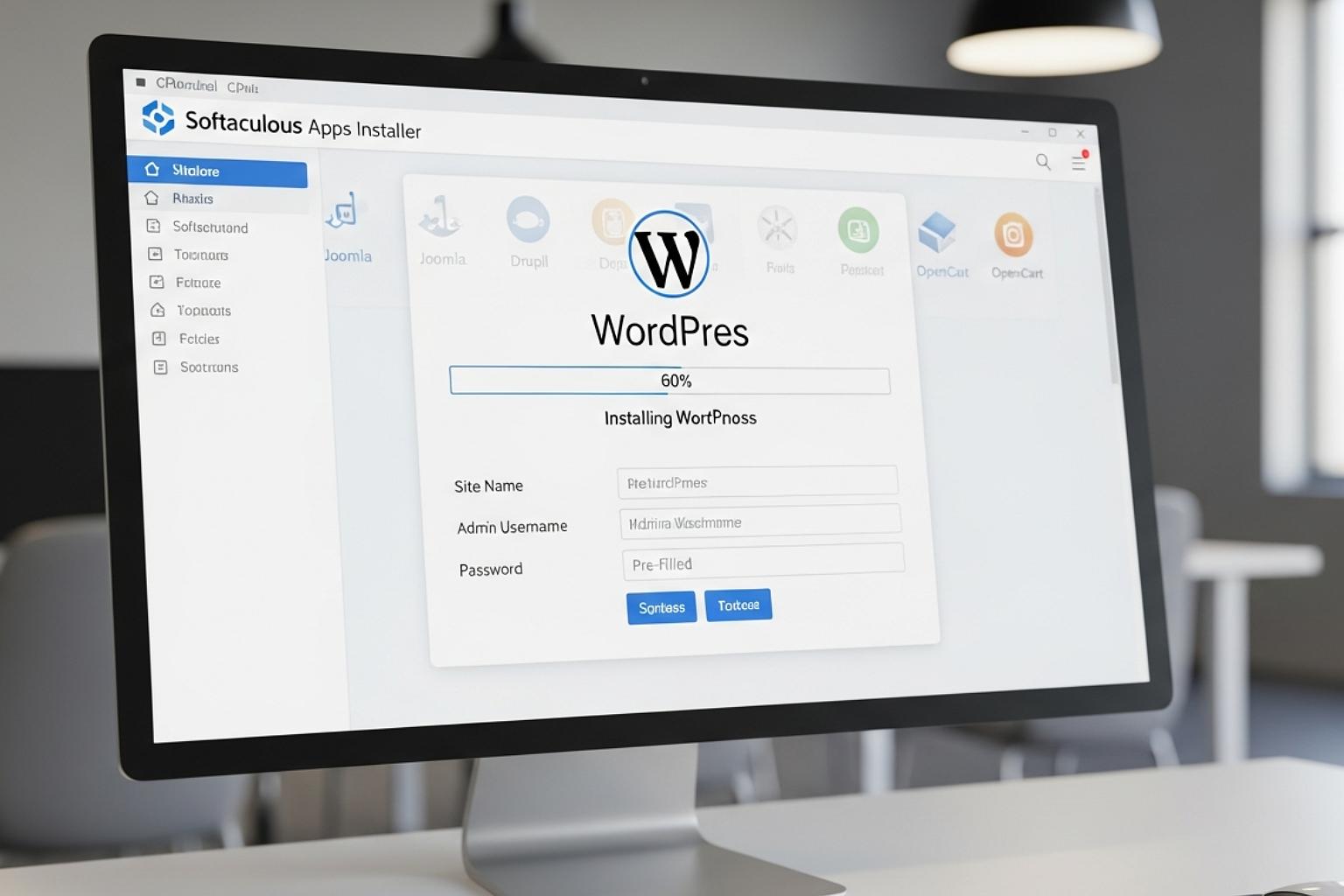
With Heartland Host, you can install WordPress in just a few clicks using cPanel’s Softaculous installer — no coding required. In fact, you can have your site live in under 5 minutes.
Step 1: Log In to Your Hosting Account
- Go to your Heartland Host cPanel.
- Look for the Softaculous Apps Installer icon.
Step 2: Select WordPress
- In Softaculous, click on WordPress.
- Click the “Install” button to begin.
Step 3: Choose Installation Settings
- Domain: Select the domain where you want WordPress installed.
- Directory: Leave this blank if you want WordPress on your main site (e.g., yourdomain.com).
- Site Name & Description: Enter your business or blog name.
Step 4: Create Admin Login
- Choose a username and a strong password.
- Enter your email address (important for password resets).
Step 5: Finalize & Install
- Scroll down and click Install.
- Within seconds, WordPress will be ready.
Step 6: Secure with SSL
With Heartland Host, SSL is included for free. Just make sure your WordPress site uses https:// instead of http:// for security and SEO benefits.
Why Heartland Host Makes It Easy
- One-click WordPress installs — no manual setup needed.
- Free SSL included for every site.
- LiteSpeed + SSD servers for fast WordPress performance.
- Daily backups to protect your site as it grows.
Conclusion & Call-to-Action
Installing WordPress doesn’t need to be stressful. With Heartland Host’s one-click install and optimized hosting environment, you can focus on building your site instead of wrestling with technical setup.
Start Your WordPress Site in 5 Minutes with Heartland Host